We’ve all seen them. The websites that look stunning. They have those smooth animations, the glassmorphism effects, and the complex interactive menus that feel like native apps. We call these vibe-coded frontends. But here is the harsh reality: most of them are unusable for people with disabilities. A 2023 survey by WebAIM found that 96.3% of one million home pages had detectable accessibility issues. If your beautiful interface breaks for screen reader users or keyboard navigators, you aren’t just missing out on users; you’re inviting lawsuits.
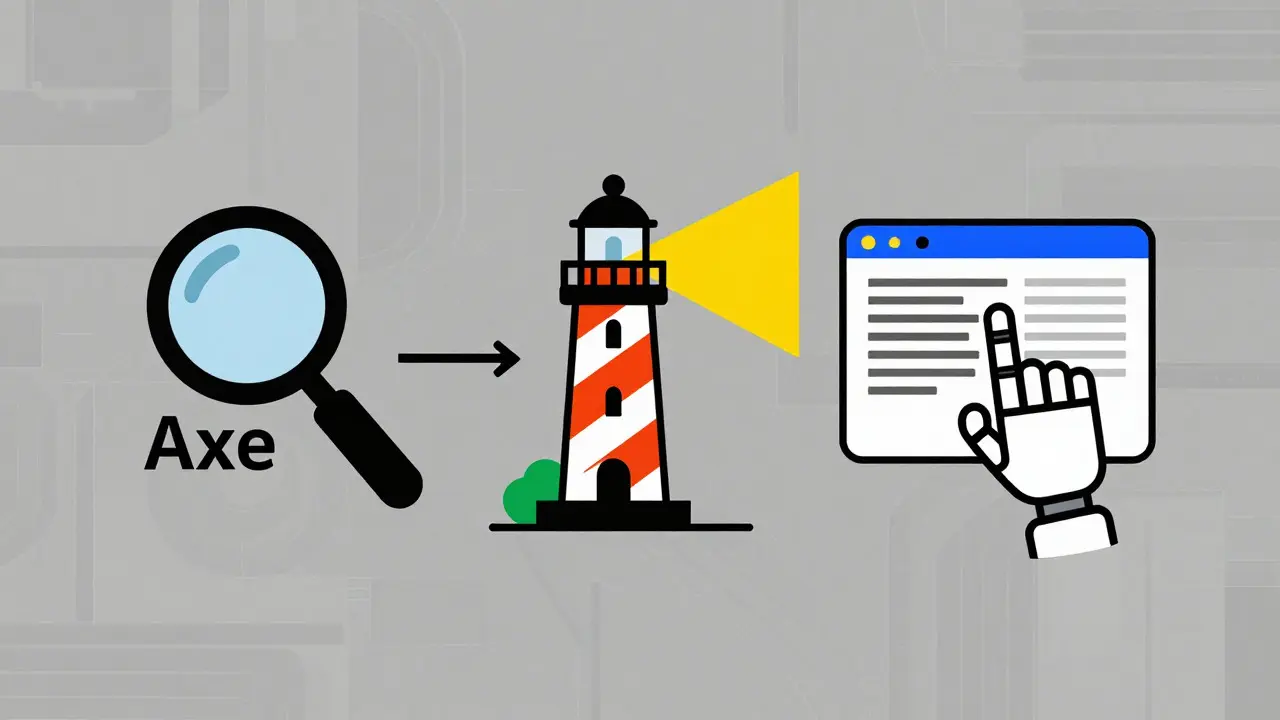
Automated tools can’t fix everything, but they catch the low-hanging fruit. For modern developers building dynamic interfaces with React, Vue, or Svelte, three tools stand out: axe-core, a JavaScript library created by Deque Systems to identify WCAG violations, Lighthouse, Google’s open-source auditing tool for web performance and accessibility, and Playwright, Microsoft’s cross-browser automation framework for end-to-end testing. Each plays a different role in keeping your frontend compliant with WCAG 2.1 and Web Content Accessibility Guidelines 2.2.
Why Vibe-Coded Frontends Need Special Attention
Vibe-coded frontends rely heavily on JavaScript frameworks and CSS-in-JS solutions to create rich user experiences. This complexity creates unique accessibility traps. Custom dropdowns might look great but fail to announce their state changes to screen readers. Modals might steal focus visually but not programmatically. Dynamic content loading can leave aria-labels empty until the data arrives.
The problem isn’t just aesthetics; it’s structure. When you build a custom component instead of using a native HTML element, you lose built-in accessibility features. You must manually add ARIA attributes, manage keyboard navigation, and ensure color contrast meets the minimum 4.5:1 ratio for normal text defined in WCAG 2.1. Automated tools help verify these manual additions don’t slip through the cracks.
Axe-Core: The Deep Dive Specialist
If you want raw power, you start with axe-core. Released as open source in 2016 by Deque Systems, this library is the engine behind many other accessibility tools. It doesn’t care about your scorecard; it cares about the code.
Axe-core injects directly into the DOM and runs 58 built-in rules covering WCAG 2.0, 2.1, and 2.2 standards. According to Deque’s internal benchmarks, it processes checks in 150-300ms per scan. That speed matters when you’re running tests frequently during development.
- Detection Rate: In CKEditor’s 2023 comparative study, axe-core detected 28 out of 30 test cases (93.3%).
- Strengths: Granular control over rules, ability to ignore specific false positives, and detailed violation explanations.
- Weaknesses: It catches only about 30-40% of total accessibility issues. Contextual problems like poor alt text quality require human judgment.
Developers love axe-core because it integrates everywhere. You can use it via the axe DevTools browser extension for immediate feedback while coding. Or, you can plug it into your CI/CD pipeline to block merges that introduce regressions. However, be prepared for a learning curve. Configuring axe-core to ignore valid framework-specific patterns, like dynamic class names in Tailwind CSS, often takes trial and error.
Lighthouse: The Quick Health Check
You probably already have Lighthouse installed. It comes built into Chrome DevTools since version 52. For quick validation before committing code, it’s unbeatable. Lighthouse 10.2.0 uses axe-core 4.6.0 under the hood for its accessibility audits, generating a simple 0-100 score.
| Feature | Axe-Core | Lighthouse |
|---|---|---|
| Detection Accuracy | 93.3% (CKEditor Study) | 83.3% (CKEditor Study) |
| Integration | Browser Extension, Node.js, CI/CD | Chrome DevTools, CLI, Node.js |
| Output Format | JSON array of violations | Scored report (0-100) |
| Cross-Browser Support | All major browsers | Primarily Chrome/Chromium |
| Setup Complexity | Medium (requires configuration) | Low (built-in) |
The simplicity is both its strength and weakness. Developers find the 0-100 score intuitive, aiming for 90+ for “good” accessibility. But experts warn against treating this score as gospel. Adrian Roselli, an accessibility specialist, has called Lighthouse’s single metric “dangerously misleading.” Why? Because Lighthouse focuses only on automatically detectable issues. In Codoid’s 2024 benchmark, Lighthouse detected only 3 out of 9 test issues, compared to axe-core’s 7.
Use Lighthouse for awareness and quick checks. Don’t use it as your final compliance gate. It’s great for spotting missing alt tags or low contrast colors instantly, but it won’t tell you if your heading hierarchy makes logical sense for a screen reader user navigating a complex layout.
Playwright: The End-to-End Guardian
Here is where things get interesting for vibe-coded frontends. These applications are dynamic. Content loads asynchronously. States change rapidly. Static snapshots miss critical errors. This is where Playwright, introduced by Microsoft in January 2020, shines.
Playwright itself isn’t an accessibility tool. It’s an automation framework. But when paired with the @axe-core/playwright package, it becomes a powerful guardian for your entire user journey. Unlike Lighthouse, which takes a snapshot, Playwright interacts with your app. It clicks buttons, opens modals, and waits for network requests to finish.
This timing control is crucial. As documented in Playwright’s official guides, adding `await page.locator('#navigation-menu-flyout').waitFor()` before scanning prevents false negatives in single-page applications. Without waiting, you might scan the menu before it fully renders, missing aria-expanded states or keyboard trap issues.
- Cross-Browser Coverage: Playwright supports Chromium, Firefox, and WebKit across Windows, macOS, and Linux.
- Performance Impact: Adding accessibility checks typically adds 200-500ms to test execution time, according to Checkly’s benchmarks.
- Adoption: Reddit users report catching dozens of regressions in CI pipelines that manual testing missed over months.
The setup requires more effort than Lighthouse. You need to install both packages (`npm install @playwright/test @axe-core/playwright`) and configure your test files. But once set up, it runs automatically every time you push code. This shifts left approach prevents broken accessibility from reaching production.
Building Your Accessibility Workflow
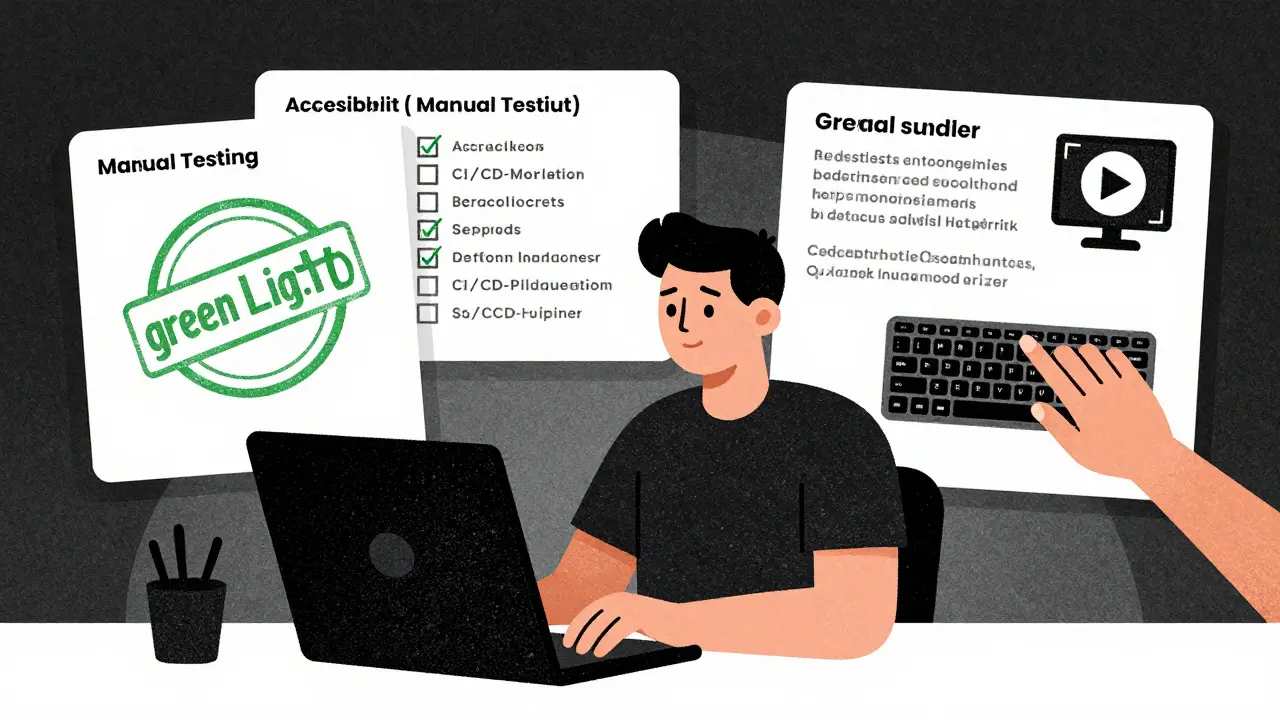
No single tool solves accessibility. You need a layered strategy. Think of it like security: you have firewalls, antivirus, and physical locks. Similarly, you need different tools for different stages of development.
Start with axe DevTools during local development. Get immediate feedback as you write components. Fix issues before they pile up. Then, run Lighthouse before committing. Use it as a quick sanity check to ensure you haven’t broken basic standards like color contrast or image alternatives.
Finally, integrate Playwright with axe-core into your CI/CD pipeline. This is your automated gatekeeper. It ensures that new features don’t break existing accessibility. Configure it to fail builds if critical violations appear. Ignore minor style issues that don’t impact usability to avoid noise.
Remember the limitations. Automated tools catch about 30% of issues. The rest requires manual testing. You still need to test with actual screen readers like NVDA or VoiceOver. You still need to navigate with a keyboard alone. Automation handles the technical violations; humans handle the experience.
Common Pitfalls to Avoid
Even with the best tools, teams stumble. Here are the most common mistakes I see in vibe-coded projects:
Ignoring False Positives: Modern frameworks generate dynamic IDs and classes. Axe-core might flag these as duplicates or invalid. Learn to configure `.disableRules(['duplicate-id'])` for known safe patterns. Don’t just silence the rule globally; be specific.
Relying on Scores Alone: A perfect Lighthouse score doesn’t mean accessible. It means no *automated* violations were found. Always pair scores with manual review.
Neglecting Timing: In SPAs, scanning too early yields incomplete results. Always wait for key elements to load before running accessibility checks in Playwright.
Skipping Keyboard Navigation: Tools can check if tab order exists, but not if it makes sense. Test your flow manually. Does the focus jump randomly? Can you escape modals with Escape?
Which tool is best for beginners?
Lighthouse is the easiest starting point because it requires no installation and provides clear scores. However, for serious development, learn axe-core via its browser extension to understand specific violations better.
Can automated tools replace manual accessibility testing?
No. Automated tools catch only about 30% of issues. They excel at finding technical violations like missing alt tags or low contrast. Manual testing is essential for evaluating logic, context, and user experience with assistive technologies.
How do I integrate axe-core with Playwright?
Install both packages using npm: `npm install @playwright/test @axe-core/playwright`. Import the axe function in your test file and inject it into the page before interacting with elements. Use `await page.accessibility.check()` to run audits.
Why does Lighthouse show a high score but my site feels inaccessible?
Lighthouse only detects automatically identifiable issues. It cannot judge semantic meaning, logical reading order, or appropriate alt text descriptions. A high score indicates technical compliance, not necessarily good user experience for disabled users.
Is Playwright worth the setup effort for small projects?
For small static sites, Lighthouse may suffice. For dynamic single-page applications with complex interactions, Playwright is highly recommended. Its ability to simulate real user flows and wait for async content makes it invaluable for preventing regression bugs.


Dave Gibbeson
31 July, 2026 - 05:23 AM
Listen up devs, this is the most important thing you will read today. Axe-core isn't just a tool, it's your shield against getting sued into oblivion by some lawyer who knows enough about WCAG to be dangerous. You think your glassmorphism looks cool? Great. Now try navigating it with only a keyboard and tell me it doesn't feel like walking through molasses while blindfolded. I've integrated Playwright into our CI pipeline last week and it caught three critical focus trap issues that Lighthouse completely missed because it was too busy giving us a shiny green scorecard. Stop treating accessibility as an afterthought or a nice-to-have feature for the 'socially conscious' team. It's code quality. If your code breaks for 15% of the population, your code is broken. Period. Get axe-core running in your dev environment right now.
Kim Edwards
1 August, 2026 - 04:06 AM
I literally cried when I realized my beautiful modal dialog was invisible to screen readers. It was like watching a masterpiece painting get splashed with paint thinner. The irony is palpable. We spend hours tweaking the blur radius on that backdrop filter, obsessing over the micro-interactions of a button hover state, and then BAM. Total silence for half the users. It’s tragic. Absolutely heartbreaking. And here we are, blaming the tools instead of ourselves for building these fragile, vibe-dependent nightmares. My heart bleeds for every developer who thinks a Lighthouse score of 95 means they’re done. They aren’t. They’re barely started. The despair is real folks.
Joanna Mucha
3 August, 2026 - 00:48 AM
One must question the very nature of 'vibe' when it excludes the sensory experience of others. Is it truly aesthetic if it is not universally perceivable? Or is it merely a narcissistic projection of the developer's visual bias onto the digital canvas? The reliance on automated tools such as Lighthouse suggests a superficial engagement with the philosophy of inclusion. It is a performative gesture, akin to wearing a rainbow pin while ignoring the structural inequalities within one's own codebase. The pseudo-intellectual comfort of a high score masks the deeper existential failure of empathy. We are not coding for machines; we are coding for human consciousness in all its varied forms. To ignore this is to embrace a solipsistic digital hegemony.
Bonnie Watt
3 August, 2026 - 21:57 PM
You guys are all missing the point again. It’s always about the tools. Always. Like installing axe-core fixes the fact that your design system is fundamentally flawed from the start. I see so many junior devs thinking they can just slap some aria-labels on and call it a day. Spoiler alert: it doesn’t work. You need to actually understand how assistive technology interprets the DOM. It’s not magic. It’s logic. And if you can’t explain why your custom dropdown needs role=listbox, you don’t deserve to ship code. Stop hiding behind the automation metrics. They are vanity metrics for lazy engineers. Do the manual testing or go home.
Meagan Mueller
4 August, 2026 - 08:28 AM
its all a conspiracy by big tech to make sure only their approved frameworks pass the tests while independent devs struggle with false positives. microsoft pushes playwright because they want to lock you into their ecosystem just like google does with lighthouse. axe core is probably owned by deque systems who profit from selling expensive audits to companies that failed basic compliance. wake up sheeple. the tools are rigged. the scores are fake. they want you dependent on their ci cd pipelines. test manually with voiceover and see what happens. nothing works anyway because the web is dying.
Elisabeth Ballet
4 August, 2026 - 23:38 PM
We can do better than this! Every single one of us has the power to make the web more inclusive starting right now. Let’s support each other in learning these tools. If you’re struggling with Playwright setup, reach out! There is no shame in asking for help when trying to build a better world. Imagine a frontend where everyone feels welcome regardless of their abilities. That is the vibe we should be coding for. Not just pretty animations, but genuine connection. Let’s celebrate the small wins when we fix a contrast issue or improve tab navigation. Together we rise!